Proje Açıklaması
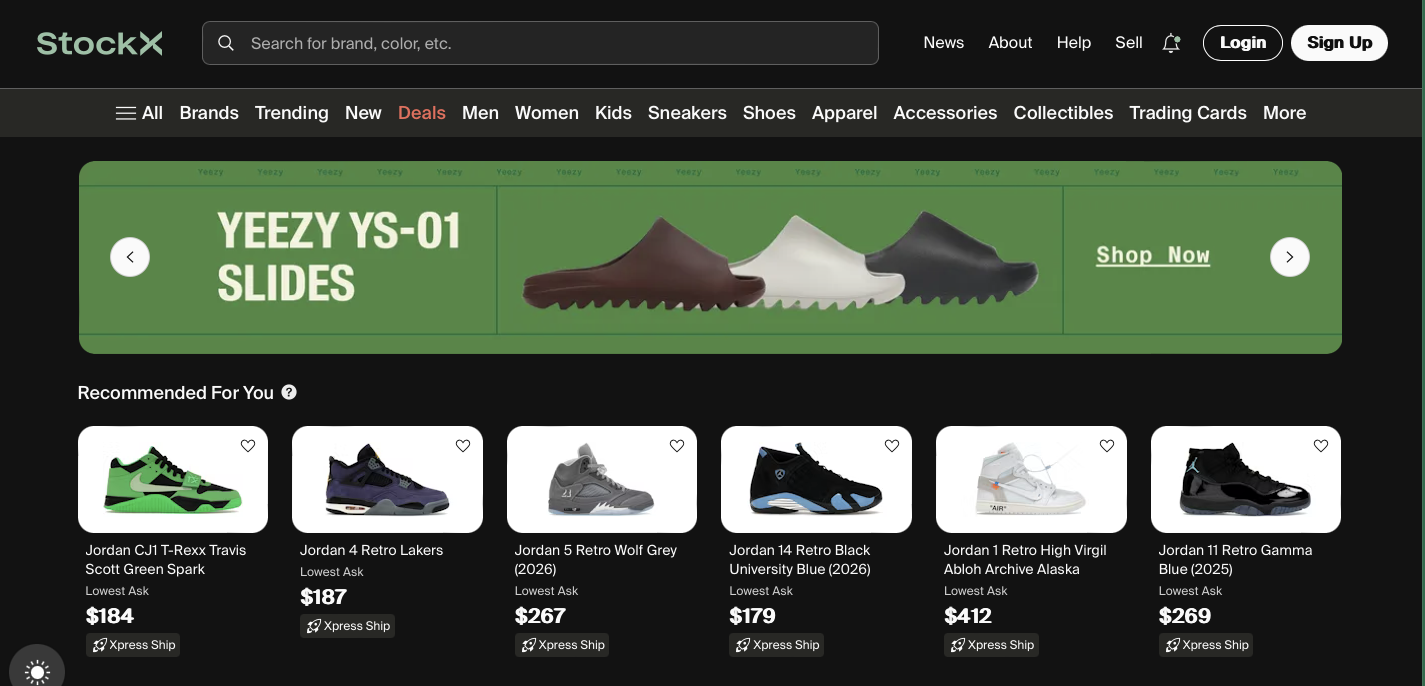
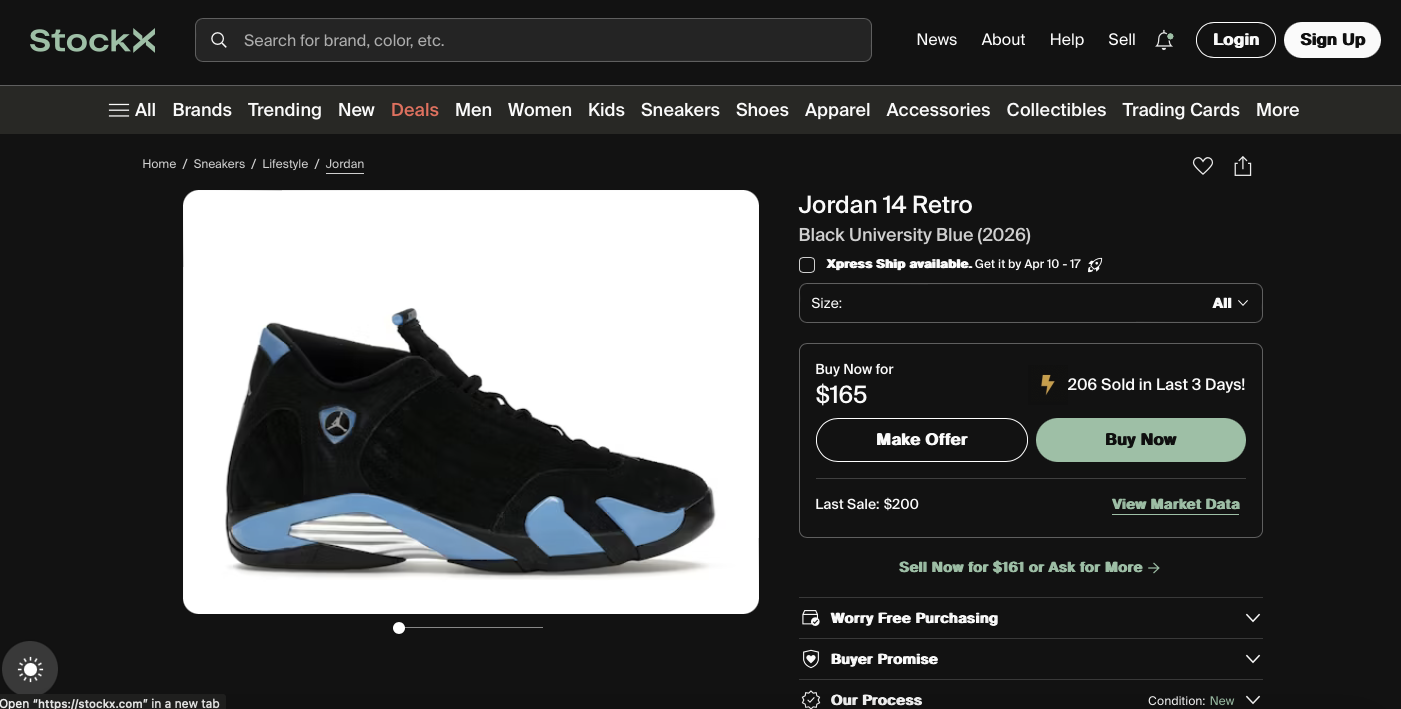
StockX için geliştirdiğim bu projede, belirli kategorilerdeki ürünleri otomatik olarak takip eden ve uygun fırsatları tespit ettiğinde anında teklif verebilen bir sistem kurdum.
Sistem, ürünlerin piyasa verilerini (fiyat seviyeleri, satış geçmişi vb.) düzenli olarak topluyor ve bu verileri analiz ederek potansiyel olarak kârlı olabilecek ürünleri filtreliyor. Ardından belirlenen kriterlere uyan ürünler için otomatik olarak teklif (bid) oluşturuyor.
Aynı anda birden fazla hesapla çalışabilmesi sayesinde işlem yükü dağıtılabiliyor. Ayrıca bot korumalarına karşı çeşitli önlemler (Cloudflare, PerimeterX gibi sistemlerin tespiti) entegre edildi.
Tüm süreç, geliştirdiğim web panel üzerinden yönetilebiliyor. Bu panel sayesinde profiller, kategoriler ve proxy ayarları kolayca kontrol edilebiliyor. Veriler PostgreSQL üzerinde saklanıyor.
Kısaca: StockX üzerinde veri toplayan, analiz eden ve uygun durumlarda otomatik teklif veren tam otomasyon bir sistem.
Proje Detayları
# StockX Product Scraper & Bidding Bot
A powerful web scraper and automated bidding tool for StockX using **nodriver** and **Chrome DevTools Protocol (CDP)**.
## 🎯 Features
- **Product Scraping**: Automatically scrape StockX product listings from specified categories
- **Intelligent Filtering**: Filter products based on market data, price levels, and sales history
- **Automated Bidding**: Place automatic bids on products matching your criteria
- **Multi-Profile Support**: Run multiple profiles simultaneously for distributed load
- **Bot Protection Handling**: Automatically handle PerimeterX and Cloudflare Turnstile captchas
- **Web Dashboard**: Intuitive Flask-based interface to manage profiles, categories, and proxies
- **Database Management**: PostgreSQL backend for efficient data storage and retrieval
---
## 📋 Prerequisites
### Required Software
- **Google Chrome** (version 112)
- **Microsoft Edge** (better option) (optional)
- **PostgreSQL** 17+
- **Python** 3.10 - 3.12
### System Requirements
- Windows/Linux/macOS
- 8GB+ RAM (for multiple profiles)
- 50GB+ disk space
- Stable internet connection
---
## 🚀 Quick Start
### 1. Install Dependencies
```bash
# Create virtual environment
python -m venv venv
# Activate virtual environment
# Windows:
.\venv\Scripts\activate
# macOS/Linux:
source venv/bin/activate
# Install Python packages
pip install -r requirements.txt
```
### 2. Setup Database
```bash
# Windows:
.\database.bat
# macOS/Linux:
python database.py
```
Default PostgreSQL password: `8691` (change in `database.py` if different)
### 3. Run Dashboard
```bash
python app.py
```
Access at: `http://localhost:8000`
### 4. Configure & Run Scraper
```bash
python main.py
```
---
## 📖 How It Works
### Dashboard Setup
The dashboard allows you to configure the scraper before running:
#### **Profiles Tab**
- Add profiles with StockX account information
- **Gmail App Password**: Required for authentication when using new IPs (proxies)
- Enable 2FA on Gmail account
- Generate app password: [Google App Passwords](https://myaccount.google.com/apppasswords)
- Use services like [5sim](https://5sim.net) or [SMS-Activate](https://sms-activate.org) for phone numbers
- **Address UUID**: Required for placing bids (obtain from browser DevTools manually)
#### **Categories Tab**
- Add product categories to scrape
- Format: `https://stockx.com/category/sneakers?sort=`
- Available sorting options (in `main.py`):
```python
["featured", "most-active", "lowest_ask", "highest_bid", "recent_asks",
"deadstock_sold", "release_date", "price_premium", "last_sale"]
```
- Categories are automatically distributed among profiles for efficient processing
#### **Proxy Tab**
- Add your proxy server (supports multiple, currently uses first one)
- Format: `http://proxy-address:port` or `http://user:pass@proxy:port`
### Scraping Process
1. **Data Collection**: Uses CDP to intercept API requests and collect:
- Market Data (current listings)
- Price Levels (bid/ask prices)
- Sales History
2. **Bot Protection Handling**:
- **PerimeterX**: Detected but cannot be solved automatically (IP blocking)
- **Cloudflare Turnstile**: Auto-solved with GUI clicking (keep browser window visible)
- Retry limits prevent infinite loops
3. **Product Filtering**: Products are filtered based on:
- Filter criteria from database
- Availability of required data files
- Market conditions
4. **Multi-Profile Distribution**: When multiple profiles exist:
- Categories are divided among profiles
- Profiles run simultaneously to reduce total execution time
- Each profile uses a separate Chrome instance
---
## ⚙️ Configuration
### Windows Setup
#### Disable Chrome Auto-Updates
```powershell
icacls "C:\Program Files (x86)\Google\Update" /inheritance:r
icacls "C:\Program Files (x86)\Google\Update" /grant:r Administrators:(OI)(CI)F
icacls "C:\Program Files (x86)\Google\Update" /deny "NT AUTHORITY\SYSTEM":(OI)(CI)W
icacls "C:\Program Files (x86)\Google\Update" /deny "Users":(OI)(CI)W
```
#### Configure Firewall
```powershell
New-NetFirewallRule -DisplayName "Allow Uvicorn 8000" -Direction Inbound -Action Allow -Protocol TCP -LocalPort 8000
```
#### Add PostgreSQL to PATH
```powershell
[Environment]::SetEnvironmentVariable("Path", $env:Path + ";C:\Program Files\PostgreSQL\17\bin", "User")
```
### macOS/Linux Setup
1. Install PostgreSQL:
```bash
# macOS (Homebrew)
brew install postgresql@17
# Linux (Debian/Ubuntu)
sudo apt-get install postgresql-17
```
2. Add to PATH:
```bash
export PATH="/usr/local/opt/postgresql@17/bin:$PATH" # macOS
# or add to ~/.zprofile or ~/.bashrc
```
---
## 🗄️ Database
The project includes `database.py` which handles:
- AutoDatabase creation and table setup
- Connection pooling for efficiency
- Schema for profiles, categories, products, and bids
**Default credentials:**
- User: `postgres`
- Password: `8691`
- Database: `stockx`
To reset database:
```bash
python database.py # or .\database.bat on Windows
```
---
## 📁 Project Structure
```
stockx-rdupload/
├── main.py # Main scraper entry point
├── app.py # Flask dashboard server
├── database.py # Database configuration
├── requirements.txt # Python dependencies
├── bid.py # Bidding logic
├── login.py # StockX authentication
├── fetch_product.py # Product data fetching
├── turnstile_solver.py # Captcha solving
├── templates/ # HTML templates for dashboard
│ ├── base.html
│ ├── profiles.html # Profile management
│ ├── categories.html # Category management
│ ├── proxy.html # Proxy configuration
│ └── ...
├── static/ # CSS, JavaScript
│ ├── css/style.css
│ └── js/
└── README.md # This file
```
---
## 🔧 Troubleshooting
### Database Connection Errors
```bash
# Test PostgreSQL connection
psql -U postgres -d stockx
# Check service status (Windows)
Get-Service | Select-String postgres
# Restart service
Restart-Service -Name postgres*
```
### Chrome Not Found
- Verify installation: `C:\Program Files\Google\Chrome\Application\chrome.exe`
- Ensure Chrome version 112 is installed
- Check auto-update is disabled
### Port Already in Use
- The script automatically detects free ports
- Check logs for actual ports being used
- Manually specify PORT environment variable if needed
### Captcha Not Solving
- Ensure browser window is visible and not resized
- Check browser position matches hardcoded coordinates
- Verify Cloudflare Turnstile (not PerimeterX)
- Check console logs for error details
### Memory Issues
- Limit concurrent profiles (2-3 recommended)
- Increase available system RAM
- Monitor with: `python objgraph_tools.py`
---
## 🚨 Important Notes
⚠️ **Before Running:**
- Add categories to the dashboard (required for scraping)
- Configure at least one profile with valid Gmail app password
- Set address UUID for each profile
- Add a proxy server
- Do NOT move browser windows while Turnstile captcha is being solved
⚠️ **Maintenance:**
- Regularly check scraper logs for errors
- Monitor browser processes for memory leaks
- Keep Chrome version in sync (auto-update disabled)
- Backup database periodically
---
## 🔐 Security Considerations
- **Gmail Credentials**: Enable app-specific passwords, not your main password
- **Proxies**: Use reputable proxy services to avoid IP blocks
- **Git**: `.gitignore` includes `*.exe`, `*.bat`, and sensitive files
- **.env Files**: Never commit environment variables or credentials
---
## 📊 AWS/EC2 Deployment
### Security Group Settings
```
Inbound Rules:
- Port 8000 (Dashboard): Your IP or 0.0.0.0/0 (dev only)
- Port 5432 (PostgreSQL): Your IP only
- Port 3389 (RDP): Your IP only
```
### Recommended Instance
- **Type**: t3.large or t3.xlarge
- **vCPU**: 2-4
- **Memory**: 8-16 GB RAM
- **Storage**: 50GB+ EBS
- **OS**: Ubuntu 20.04 LTS
---
## 📝 Changelog
- **v1.0**: Initial release with multi-profile support
- Fixed memory leaks in browser management
- Improved Turnstile captcha detection and solving
---
## 🤝 Contributing
Found a bug? Have a feature request?
Please report issues with:
- Error logs
- Steps to reproduce
- System information
---
## 📧 Support
For questions or issues:
- Check troubleshooting section above
- Review error logs in console output
- Check `log.py` for detailed logging configuration
---
## 👤 Author
**Dogan Ali San**
---
## ⚖️ Disclaimer
This tool is for **educational and authorized use only**. Ensure you have proper authorization before automating any activities on third-party websites. Use responsibly and in compliance with website terms of service.
## 📋 Prerequisites
### Required Software
1. **Google Chrome** - version 112
2. **PostgreSQL 17** - Database server
3. **Python 3.10** - Programming language
4.
### Required Files
- Download all project files from the repository (code, configuration files, requirements.txt)
---
## Running Scraper
```powershell
python main.py
```
---
## Running Dashboard Server
```powershell
python app.py
```
---
## How Does it Work ?
When you first setup the project you will have an empty database and there are things you need to fill from dashboard in order for this scraper to run smoothly.
- First run Dashboard Server
Access profiles tab and add a profile with all the information asked
In here you can see a gmail app password is asked, this is required because stockx most of the time blockes our login saying we need to authenticate our new ip. Since we use proxies and each instance uses another ip we have to authenticate everytime. By accesing the gmail Profile uses the scraper is able to authenticate the new ip.
Address uuid is required when creating the browser, when making bids we are using address uuid, this is required by stockx.
Access Categories tab and Add as much as categories you want this scraper to go thru.
Make sure to add them in this format ```https://stockx.com/category/sneakers?sort=```
sorting is defined in the main.py as a list with these values:
```
[
"featured", "most-active", "lowest_ask", "highest_bid", "recent_asks",
"deadstock_sold", "release_date", "highest_bid", "price_premium", "last_sale",
]
```
Main.py checks if there is more than one profile and in order to lighten work load it devided categories in between them and runs several profiles at the same time
When scraping we encounter two types of bot protections (PerimeterX, Cloudflare Turnstile) the code is capable of identifing these protections when they block us how ever Perimeterx Chaptchas are not possible to solve at this moment so when that happens
(which usually means the ip we are using made too much request and got banned)
the scraper logins to the profile with a new browser instance. For Cloudflare turnstile captcha, browser is forwarded on the screen and a windows native clicking function is run to click a hardcoded position on the screen this clicks on turnstile captcha and solves it. In order for this part to not break do not move any browser instances from where they are on the screen. Each captcha solution has a retry limit if after a set number of retries it can't solve the captcha it will try to continue for new product/page or if thats not possible it will eventually break the code meaning we are blocked good currently we don't have a solution for this.
As a genaral information, we are using cdp to catch every request made in the product page to retrieve 3 files (Marketdata, pricelevels, sales) these 3 helps us to check if a product is fitting our filters to bid or not, if after catching requests any of these files are missing that product is deleted from the database for another run to catch them.
Navigate to proxy tab and add a proxy you want to use, you can add multiple but for now
the scraper only connects to the first one
I suggest repeated checking on the scraper when it is running as it may have an error that is not seen before.
---
## 🚀 Installation Steps
### Step 1: Install Google Chrome
Download and install from: Google_Chrome_(64bit)_v112.0.5615.50.exe
### Step 2: Install PostgreSQL 17
1. Download from: https://www.postgresql.org/download/windows/ or from repository files
2. Install with default settings make sure to set postgres password to 8691
3. Remember your postgres password!
### Step 3: Install Python 3.10
1. Download from: https://www.python.org/downloads/ or from repository files
2. During installation:
- ✅ Check "Add Python to PATH"
- ✅ Check "Install for all users"
### Step 4: Download Project Files
Clone or download this repository to:
```
C:\Users\Administrator\Desktop\stockx-rdupload\
```
---
## ⚙️ System Configuration
### 1. Disable Chrome Auto-Updates
Open **PowerShell as Administrator** and run:
```powershell
icacls "C:\Program Files (x86)\Google\Update" /inheritance:r
icacls "C:\Program Files (x86)\Google\Update" /grant:r Administrators:(OI)(CI)F
icacls "C:\Program Files (x86)\Google\Update" /deny "NT AUTHORITY\SYSTEM":(OI)(CI)W
icacls "C:\Program Files (x86)\Google\Update" /deny "Users":(OI)(CI)W
```
### 2. Configure Windows Firewall
Open **PowerShell as Administrator** and run:
```powershell
New-NetFirewallRule -DisplayName "Allow Uvicorn 8000" -Direction Inbound -Action Allow -Protocol TCP -LocalPort 8000
```
### 3. Setup Environment Variables
**Add PostgreSQL to User Path:**
```powershell
[Environment]::SetEnvironmentVariable("Path", $env:Path + ";C:\Program Files\PostgreSQL\17\bin", "User")
```
**Add PostgreSQL System Variable:**
1. Search: `edit the system environment variables`
2. Click **Environment Variables**
3. Under **System Variables**, click **New**
- Variable name: `psql`
- Variable value: `C:\Program Files\PostgreSQL\17\bin`
4. Click **OK**
**Add Python to System Path:**
1. Search: `edit the system environment variables`
2. Click **Environment Variables**
3. Under **System Variables**, select **Path**, click **Edit**
4. Click **New**, add: `C:\Users\Administrator\AppData\Local\Programs\Python\Python310`
5. Click **OK** → **OK** → **OK**
---
## 🐍 Python Environment Setup
Open **Command Prompt** in the project directory:
```cmd
cd C:\Users\Administrator\Desktop\stockx-rdupload
:: Create virtual environment
python -m venv venv
:: Activate virtual environment
.\venv\Scripts\activate
:: Upgrade pip
python -m ensurepip --upgrade
python -m pip install --upgrade pip setuptools wheel
:: Install dependencies
pip install -r requirements.txt
```
---
## 🗄️ Database Setup
### 1. Create Database
```
.\database.bat
```
this will create the database and its tables for you
default password for this app is 8691 if you change it you need to edit database.py as well
### Database Connection Errors
1. Verify PostgreSQL is running:
```cmd
psql -U postgres -d stockx
```
2. Check database credentials in configuration file
3. Ensure PostgreSQL service is set to auto-start
### Chrome Browser Issues
1. Verify Chrome is installed: `C:\Program Files\Google\Chrome\Application\chrome.exe`
2. Check if Chrome auto-update is disabled
3. Ensure no other processes are using Chrome debugging ports
### Port Already in Use
If you see port conflicts, the script automatically finds free ports. Check logs for actual ports being used.
---
## 📊 AWS/EC2 Configuration
If running on AWS EC2:
### Security Group Settings:
- Allow inbound TCP port 8000 from your IP or `0.0.0.0/0` (for testing only)
- Allow inbound TCP port 5432 for PostgreSQL (if accessing remotely)
- Allow inbound TCP port 3389 for Remote Desktop Protocol (if accessing remotely)
### Instance Requirements:
- **Recommended:** t3.large (2 vCPU, 8 GB RAM)
- **Storage:** At least 50 GB
---
## 📝 Notes
- The service runs automatically for each category that is inside the database you create make sure to add categories the basic format for category is "https://stockx.com/category/sneakers?sort="
- Sorting type is given inside main.py
- Make sure to add profiles with gmail app passwords (A gmail account is requiring phone number to enable app passwords use services like sms-activate 5sim or any other your choice to get a number verify by google and get an app password from gmail)
- Make sure to add address uuid to profiles this can be obtained from dev tools manually
- Database connections are pooled for efficiency
- All file paths use the repository's files - no external downloads needed except system software
---
## 👤 Author
DoganAliSan